The Onboarding Form
To begin onboarding as a Charity Partner, you must first submit a Charity Onboarding Form. The form is a quick, 4-page submission which provides us with everything we need to build your partner page on the website.
Open the Charity Onboarding FormWhat you'll need
Have the following information ready before opening the form:
- Registered Charity Name
- Registered Charity Number - this must be findable on the UK Charities Register
- Primary Contact Information - first name, last name, email address, and telephone number
- Charity Website and Social Media Handles - the links you provide will appear on your Charity Partner Page
- Page Description - a brief description of your charity which will appear at the top of your Partner Page. Supports formatting including bold, bullet points, numbered lists, and more.
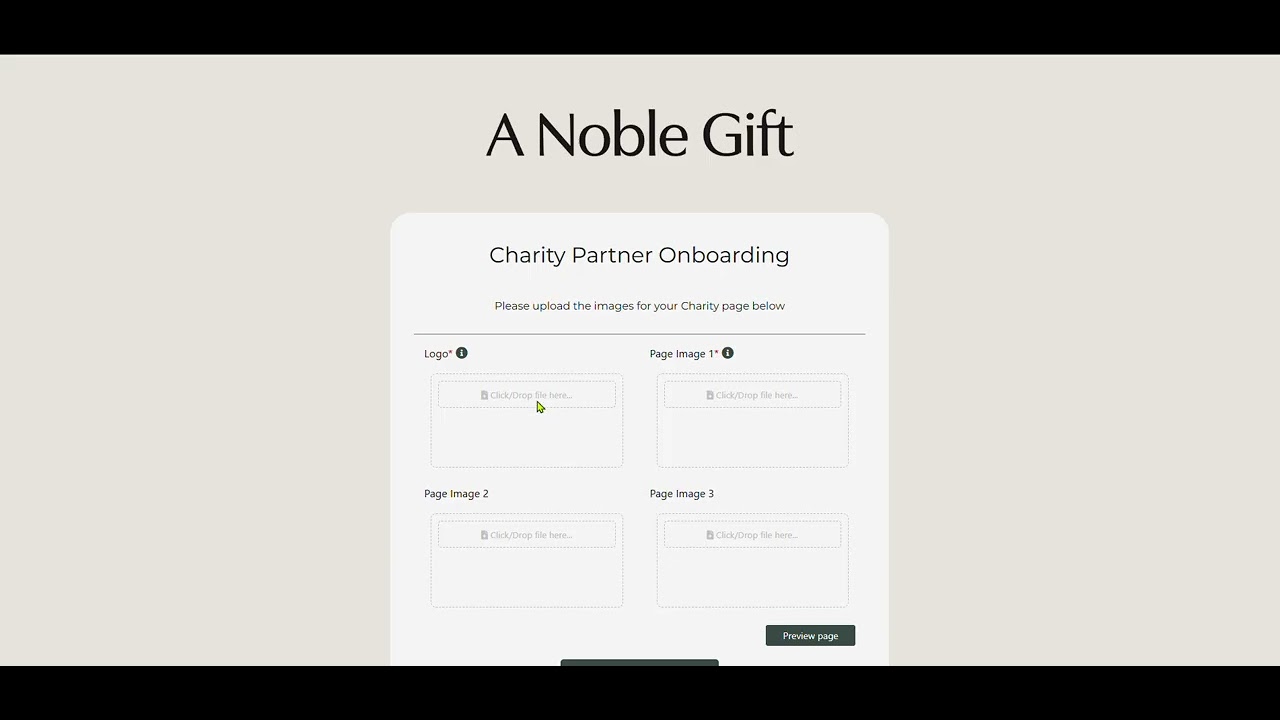
- Charity Logo - should be square dimensions (640×640) for the full logo to be visible on our Charity Partners page
- Page Images - at least one image is required, displayed in landscape orientation (1500×1000). You can upload up to 3 images in total on your partner page.
Video walkthrough: pages 1-3
The video below walks through how to complete pages 1-3 of the Charity Onboarding Form:
Completing the Charity Onboarding Form - pages 1-3
Passing the form to another team member
The final step before submitting the Onboarding Form is connecting your Stripe account, so that payouts are made immediately when auctions close on the platform.
If a different person within your charity needs to complete the Stripe connection (for example, someone in finance), that's straightforward. All information submitted in pages 1-3 is saved automatically - you can pass the form URL directly to the relevant person, and they can pick up from page 4 to connect Stripe and submit.
For example, after completing pages 1-3 your link would look something like this:
https://anoblegift.com/?charity_onboarding&charity_id=2a0ea78110c16fa59328a891ee39ef75&page=4
Note: the above is an example link only and will not work.
Connecting your Stripe Account
In order to receive payouts from Auctions and Prize Draws hosted on A Noble Gift, your charity must connect a Stripe account with A Noble Gift's Stripe account. This ensures that A Noble Gift does not handle charity funds directly - auction proceeds are transferred to your charity automatically when an auction closes.
When connecting, you have two options: Express or Standard.
Many charities will already have a Standard Stripe account used for other purposes - you are able to connect this existing account, however please consult the Account Privacy Terms set out by Stripe when doing so. Alternatively, if you wish to set up a separate account purely for A Noble Gift revenue, you can connect via Express. See the summaries below.
Connecting a Standard Stripe Account
You retain full access to the Stripe Dashboard, including the ability to process your own payments independently of A Noble Gift.
Your existing Stripe activity, such as payments from other income streams, will be visible within the connected account view. If your charity would prefer to keep this separate, we recommend using the Express option instead.
Connecting an Express Stripe Account
Stripe guides you through a simple onboarding process, and you'll have access to a lightweight dashboard showing your payouts from A Noble Gift.
Your wider Stripe activity remains completely separate - A Noble Gift has no visibility into any other funds your charity receives.
Any disputes or fraud liability relating to A Noble Gift transactions are handled by us, not your charity.
On page 4 of the Onboarding Form you are presented with both options - simply select the one you wish to proceed with and complete the Stripe onboarding flow. If you have any questions, don't hesitate to get in touch using the button below.
For full details on connecting Stripe and managing your account, please visit the Stripe Section →
Still need help?
Can't find what you're looking for? Get in touch and we'll get back to you.